
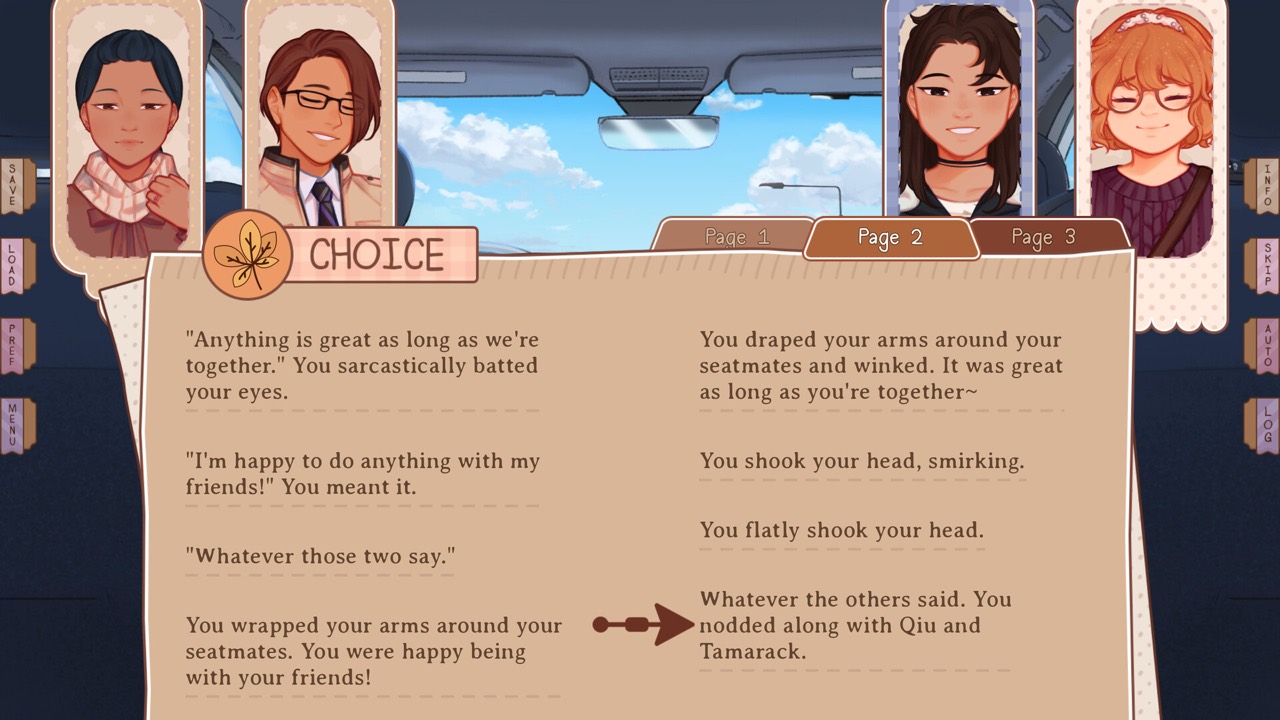
What the Star Means
The star is a memory aid for replays. It appears beside an option you have already chosen in a playthrough that was tracked. It does not rate the option or tell you which choice is best.
Because Our Life: Now & Forever is built around choices, it is easy to forget which branches you have already seen. The star helps you identify those options so you can try a different branch next time. That is the main use case guides describe for it.
How to Turn On Choice Tracking
Choice tracking is a setting, not something that runs automatically for every save. Open Settings and turn the choice tracking option on before you start the run you want recorded. GB Patch’s feature preview describes this toggle.
Only playthroughs made with tracking available are recorded. If you played a run before the feature existed, that run has no history and will not produce stars. Start a fresh run after enabling it if you want a complete record.
- Open Settings from the menu.
- Turn on choice tracking.
- Play your run as normal; picked options are recorded.
- On a later run, look for stars beside options you chose before.
Checking Who Picked an Option
The star also tells you which character made that choice. This matters because you can create different protagonists for different runs. Knowing which one picked an option helps you keep their stories apart.
The control depends on your platform. On desktop, hover the mouse over the marked choice. On Android, press and hold the option to bring up the same information.
When the Feature Arrived
Choice tracking came with the major public demo update released on November 29, 2025. GB Patch’s itch.io devlog lists the system and explains what the star marks. The developer’s Steam announcement describes the same behavior.
If you are moving a save forward, check demo saves compatibility first. Older runs will still have no choice history even if the save itself carries over. Plan to replay the Moments you care about with tracking enabled.
Using Stars to Explore Every Branch
Stars are most useful with linked Moments and relationship prompts. In Step 1, Walks and Wheels change depending on which you play first, and the Step 1 Moment order guide covers both orders. In Step 2, the vote in the Tested and PJ Day opening sets which of those Moments comes first.
Pair the stars with manual saves. Save before a choice you want to compare, pick a new option, and then reload to try another one. The Assistance choices guide is a good place to try this, since its text invitation leads to different branches.
A Replay Routine That Uses Stars
Stars work best when you replay with a plan. Finish one tracked run with the choices that feel natural to you. On the next run, deliberately pick unstarred options at the prompts you care about.
Make a manual save at the Moment selection screen before you start anything you might want to replay. Name or note each save by Step and by the standings you picked for Qiu and Tamarack. That way, comparing two branches only takes a reload.
- Turn on choice tracking in Settings.
- Play one full run without worrying about branches.
- Start a new run and look for stars at key prompts.
- Pick an unstarred option to see a different branch.
- Hover (desktop) or press and hold (Android) to check which character chose it before.
Where Choices Matter Most
Relationship prompts are the clearest place to use stars. Your standings with Qiu and Tamarack are set separately, and some scenes let you change them within a Step. A star tells you at a glance which way you went last time.
Linked Moments are the other big one. Walks and Wheels change depending on which comes first, and Tested and PJ Day are ordered by a vote. Stars on those prompts help you avoid replaying the same version by accident.
Multiple Protagonists
You can customize your protagonist’s appearance, name and pronouns. Many players make more than one character to try different stories. The ability to see which character picked an option is what keeps those runs separate.
If two characters made different choices at the same prompt, checking the star tells you which one went where. That is especially useful when you come back to the game after a break. It saves you from guessing from memory.
Frequently Asked Questions
Why don’t I see any stars?
Choice tracking has to be turned on in Settings, and runs played before the feature arrived have no recorded history.
How do I see who picked a choice on Android?
Press and hold the marked option. On desktop, hover over it instead.
Does a star mean the choice is correct?
No. It only marks an option you already picked in a tracked playthrough, so you can choose something different next time.
Which update added choice tracking?
The major public demo update released on November 29, 2025.
Does choice tracking work in the demo?
Yes. It was added in the public demo update released on November 29, 2025.
Can I see stars for a run I played last year?
Only if that run was played with choice tracking available. Runs played before the feature arrived have no recorded history.
Official Video
Sources and Further Reading
- GB Patch community team — choice-tracking preview (Reddit)
- GB Patch — November 2025 major demo update
- GB Patch — Steam news archive
- Afleurdenet — character and mechanics guide